
Ask your books a question
Connect an AI service of your choice and ask questions about the period's figures in plain words.
The AI assistant answers questions about your books in a chat. It can also look things up for you, open a screen, and fill a form for you to check. It is off until you connect it to an AI service. You bring your own service and key; Hisaab works with any provider that follows the OpenAI-compatible standard.
Connect a service#
- Click Settings at the foot of the sidebar.
- On the AI assistant row, click Open.
- Under Preset, click your provider. This fills Base URL and Model. The presets are OpenAI, OpenRouter, Groq, Together and Ollama (local). For any other provider, type its address in Base URL and the model name in Model.
- Paste your key in API key. A service running on your own computer, such as Ollama, may not need one.
- Click Test connection. A green mark says "connected" and how many models are available. A red mark gives the reason for failure.
- Click Save settings.
The key is kept only in the settings file on this computer and is sent only to the address in Base URL. If that address starts with http:// and is not on your own computer, Hisaab warns that the key would travel unencrypted.
Ask a question#
- Click the sparkle icon at the top right of any screen, or press Ctrl+K and type "side panel". The assistant opens as a panel on the right.
- Type your question and press Enter, or click the send button.
The panel stays beside the screen you are working in. You can read an answer and follow it step by step without leaving your voucher or report.
- To make the panel wider or narrower, drag its left edge. Hisaab remembers the width on this computer.
- To give the chat the whole screen, click full page in the header of the panel. On the full page, click side panel to put it back beside your work.
- To close the panel, click the cross in its header, or click the sparkle icon again.
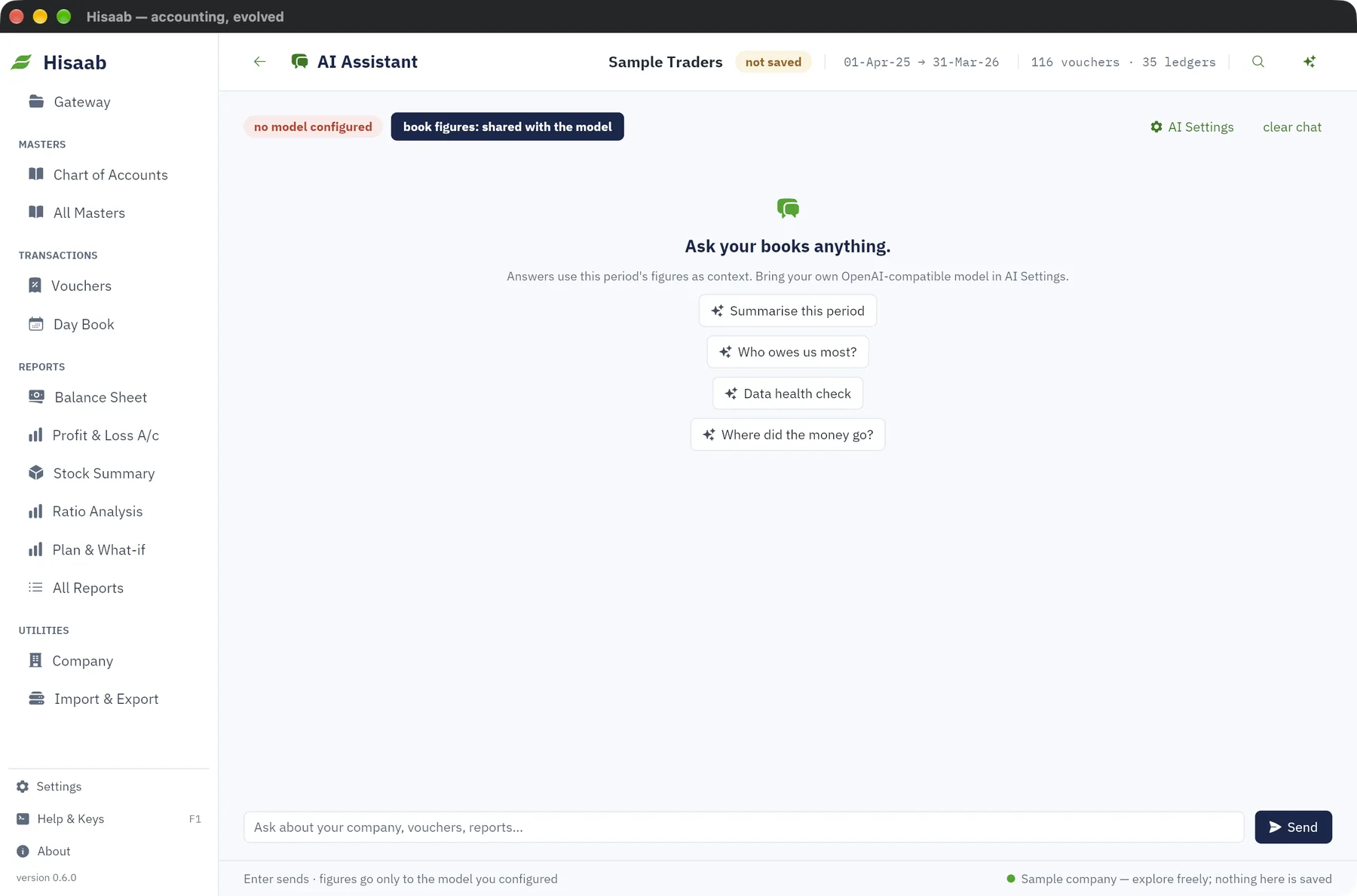
On an empty chat there are four ready questions: Summarise this period, Who owes us most?, Data health check and Where did the money go?
More examples:
- Is our gross margin healthy for a trading business?
- Which supplier do we owe the most?
- What should I look at before closing this month?
clear in the panel, or clear chat on the full page, empties the conversation. The steps and cards described below go with it. The chat is not kept when you close Hisaab.
What the assistant can do#
The assistant does more than answer in words. It works in steps, and you see every step in the chat, under the reply it belongs to.
Steps it takes by itself#
These only read. They run at once, and the assistant answers when it has the result.
| Step | What it does |
|---|---|
| Help | Searches the documentation built into Hisaab, and names the page it used |
| Find | Looks for a ledger, a stock item or a voucher in your books |
| Report | Reads a report for a period, and for one ledger if you ask |
Each of these shows as one small line with an icon: what was looked up, and how it went. For example:
- Help: backup restore · 4 passages
- Find ledger: rent · 2 found
- Report: Balance Sheet · 23 rows
A line in red means the step did not run, or found nothing. It gives the reason, for example that no report has that name, with the names that come close.
Steps it offers and you decide#
The assistant never opens a screen or fills a form by itself. It offers, and you choose.
| Offer | What you get if you accept |
|---|---|
| Open | A screen, a report with its period and ledger, a voucher, a ledger or a stock item |
| Fill the form | A new voucher, a new ledger or a new stock item, filled in for you to check |
Each offer shows as a card under the reply. The card says in one line what would be done, for example "Open Balance Sheet, 1 Apr 2025 to 31 Mar 2026" or "Fill a Payment voucher: 12,500.00 from HDFC Bank to Rent, dated 10 Apr 2025". It has two buttons:
- Open or Fill the form does what the card says.
- Not now puts the offer aside. Nothing happens.
After you choose, the buttons go and the card says what happened: Opened, Filled, Skipped, or the reason it could not be done.
If the assistant makes the same offer again while it works on one question, you see one card for it, under its newest reply.
It never saves by itself#
- A filled form is not saved. Check it, then save it yourself with Ctrl+A. Until you do, nothing is in your books.
- The assistant cannot save, post, cancel or delete anything. There is no step for it.
- If the form already holds something you typed and did not save, Hisaab asks before the draft takes its place.
- A filled voucher opens as plain debit and credit lines, exactly as the card describes it. Payments, receipts and contras open in Double Entry. Sales, purchases, notes and journals open in As Voucher.
- If you have read-only access, or the company can only be read on this computer, the card gives the reason and has no Fill the form button. Looking things up and opening screens still work.
What it cannot fill#
- A voucher with item lines. Enter an item invoice yourself.
- An order, a delivery note, a receipt note or a stock journal. These have no debit and credit lines.
- A voucher whose debits and credits do not match, or that names a ledger you do not have. The card says which, and lists the names that come close.
- A rate on a stock item. A stock item keeps no rate, so the card says the rate is left out.
- A ledger under a group that does not exist, or a stock item in a unit that does not exist.
How far it goes for one question#
- It runs at most 6 steps from one reply.
- After its lookups it may look again, at most 4 times for one question. Then it stops and the chat shows "Step limit reached". Ask again to let it continue.
What is sent to the provider#
When you ask, Hisaab sends this to the AI service you set up, and nothing else:
- Your question, and the earlier messages of the same chat.
- A fixed set of instructions: the list of steps above, the names of Hisaab's screens and reports, and today's date. They are the same for every company.
- The passages a Help step found in the built-in documentation. They hold nothing from your books.
- When figures are shared: a short summary of the period on screen, and the results of Find and Report steps.
- For each offer, one line saying that it was offered, or that it could not be made. With figures shared, the line names things as your books do and gives the reason. With figures not shared, it holds only the assistant's own words.
What you choose on a card is not sent.
The summary of the period holds:
- Company name and GSTIN.
- The period, and the count of vouchers, ledgers and stock items.
- Revenue, gross profit, net profit, indirect expenses and indirect income.
- Cash and bank, receivables with the overdue part, payables and closing stock.
- The names and balances of the top receivables and top payables.
- The count of possible duplicates, missing voucher numbers and unbalanced vouchers.
The results of Find and Report steps hold:
- Find ledger: up to 12 ledgers, each with its name, its group and its closing balance.
- Find item: up to 12 stock items, each with its name, unit, quantity in stock and value.
- Find voucher: up to 12 vouchers, newest first, each with its date, type, number, party or narration, and amount.
- Report: the lines of the report, up to 60 of them, with a note of how many were left out.
Keep your figures on your computer#
To send only your words, click figures shared at the top of the panel. It changes to figures not shared. On the full page the same button reads book figures: shared with the model.
With figures not shared:
- The summary of the period is left out.
- Find and Report do not run. The line under the reply says so, and tells you where to switch figures on.
- Help still runs. So do the offers: a card is checked against your books on your computer, and that check is not sent.
- Results of Find and Report from earlier in the same chat are left out of what is sent from then on. The assistant's own earlier answers stay part of the chat. Click clear to drop them too.
Note: Scan bill uses the same AI service. When you scan a supplier bill, the picture of the bill is sent to the provider.
Limits#
- The assistant can be wrong. It may state a figure or a rule of tax law with confidence and still be mistaken. Check anything you act on against the reports.
- It knows the summary above and what its Find and Report steps bring back. A long report is cut to 60 lines, and a search gives 12 matches at most.
- It does not post, alter or delete entries. It can fill a form for you to check, and you save it yourself.
- A draft can be wrong too. Read the filled form before you save it.
- Your provider may charge you for use and has its own rules on keeping data. Hisaab has no control over either.
- With no service set up, the chat shows "no model configured" and sending a question takes you to AI Settings.
Next#
Something here wrong or missing? Open a ticket and mention this page.