
Close the month
Work through a month-end checklist from bank reconciliation to backup, with the report or figure that proves each step is done.
This guide is for the accountant or owner who closes the books each month. At the end, the bank agrees, no drafts are waiting, dues are followed up, payroll and GST are worked, and the month is locked and backed up. Allow one to two hours.
Before you start#
- All sales, purchases, receipts and payments of the month are entered. See Enter a voucher.
- You have the bank statement for the month as CSV or Excel (.xlsx).
- You are signed in as Accountant or Admin. Setting the lock date needs an Admin.
The checklist#
| Step | Where | What proves it |
|---|---|---|
| 1. Reconcile each bank | Bank Reconciliation | Balance as per bank equals the statement |
| 2. Clear drafts | Day Book | No voucher marked "optional" |
| 3. Check data health | Data Health | No duplicates, gaps or unbalanced vouchers |
| 4. Chase receivables | Receivables Ageing | A reminder to each overdue customer |
| 5. Plan payments | Payables Ageing | Bills falling due are known |
| 6. Check stock and reorder | Stock Summary, Reorder Status | No negative stock, shortfalls ordered |
| 7. Run payroll | Payroll Register | Payroll Journal on the last day |
| 8. Work out GST | GSTR-1, GSTR-3B | File saved, tax agrees |
| 9. Read the statements | Trial Balance, Profit & Loss A/c, Balance Sheet, Cash Flow | Debit equals Credit |
| 10. Read Insights | Insights | Each finding opened |
| 11. Lock and back up | Company, Backups | Lock date set, backup listed |
| 12. Try a what-if | Plan & What-if | A scenario for next month |
The example is Sample Traders closing November 2025. Open any report, press F2 and set 1-11-2025 to 30-11-2025. The period stays as you move between reports.
Stage 1: Bank, drafts and data health#
- Open All Reports, then Bank Reconciliation, and pick the bank in Bank / cash ledger.
- Drop the statement file on the window. Matched entries get their bank date. Each statement line missing from your books becomes a draft Payment or Receipt.
- Press F10 and look down the status column for "optional". Open each draft, click Alter, correct the ledger, switch off Optional · Ctrl+L and save.
- Drop the same statement again so the vouchers you posted are marked cleared.
- Open All Reports, then Data Health.
Example: the books show ₹4,62,300 in HDFC Bank. One cheque of ₹18,000 to Apex Distributors is not yet presented. Balance as per bank is ₹4,62,300 + ₹18,000 = ₹4,80,300, the closing balance on the statement.
Check: the balance as per bank equals the statement. The Day Book has no "optional" vouchers. Data Health shows no duplicates, unbroken numbers and nothing parked in Suspense.
Stage 2: Receivables and payables#
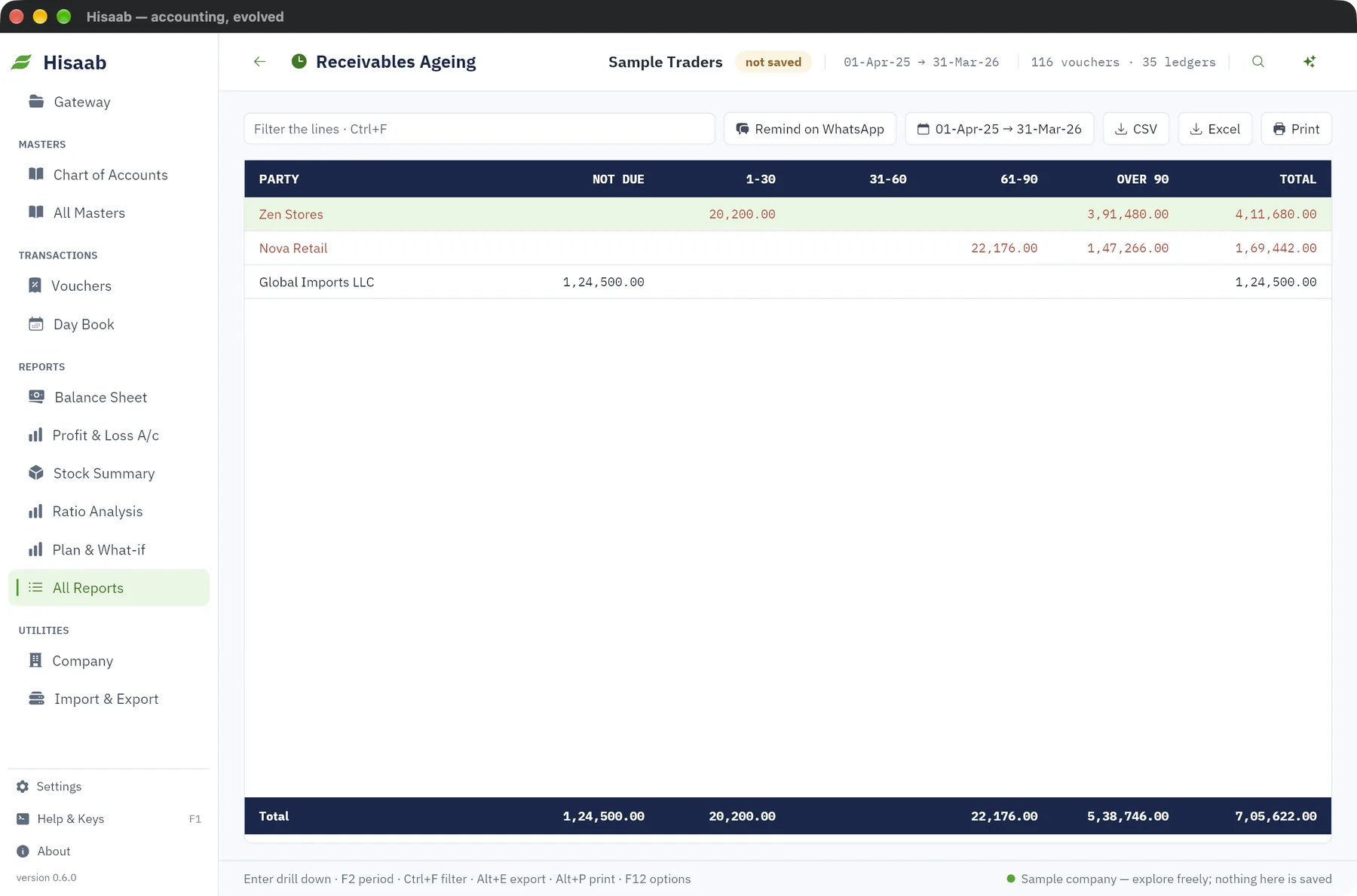
- Open All Reports, then Receivables Ageing.
- Select a customer with an amount beyond Not due and click Remind on WhatsApp. Read the message and press send. Repeat for each overdue customer.
- Open Payables Ageing and note the bills that fall due next month.
Example: Zen Stores owes ₹38,940, 12 days past the due date, so it sits in the 1-30 column.
Reminders go one customer at a time and only by WhatsApp. The customer's ledger needs a number in Phone / WhatsApp.
Check: the total of Receivables Ageing agrees with Sundry Debtors on the Trial Balance.
Stage 3: Stock and reorder#
- Click Stock Summary in the sidebar. An item sold before it was received is highlighted.
- Count your fast-moving items. To correct a quantity, press Ctrl+F7 for a Physical Stock voucher and type the counted figure in Qty.
- Open All Reports, then Reorder Status.
Example: Steel Lunch Box has 240 pcs against a reorder level of 300, a shortfall of 60.
Reorder Status only lists. To order, enter a Purchase Order (Ctrl+F9) yourself.
Check: Stock Summary has no highlighted items, and every line in Reorder Status has an order or a reason.
Stage 4: Payroll#
- Open All Reports, then Payroll Register. With the period ending 30-Nov-2025, it works out November.
- Check each line, then click Post payroll.
Paying salaries and dues is in A payroll month, start to finish.
Check: the Day Book shows one payroll Journal dated 30-Nov-2025.
Stage 5: GST working#
- Open All Reports, then GSTR-1. Correct any row in red and any item without HSN.
- Click GSTR-1 JSON. You upload the file on the GST portal yourself.
- Open GSTR-3B and read Net GST payable in cash.
The full run is in One GST month, books to portal. Have your tax practitioner confirm the first filing.
Check: the tax liability in GSTR-3B equals the tax total in GSTR-1.
Stage 6: Read the statements and Insights#
- Press Ctrl+K, type
trialand press Enter. - Open Profit & Loss A/c and Balance Sheet from the sidebar, and Cash Flow from All Reports. Press Enter on a figure that looks wrong to reach its vouchers.
- Open All Reports, then Insights. The largest rupee impact comes first.
Check: on the Trial Balance, Debit and Credit totals are equal, and no row begins with "Difference".
Stage 7: Lock the month and back up#
Lock the month once its GST return is filed.
- Press F3. Type
30-11-2025in Lock books until (period lock) and click Save settings · Ctrl+S. - Click Settings, then Open on the Backups row, then Back up now.
- If cloud backup is on, open Cloud backup & phone and click Back up now there too. Send figures now refreshes the owner's phone page.
The lock stops November's vouchers being added, altered or deleted. It does not stop a file import or a change to a bank date.
Check: the new backup is at the top of the list. Opening a November voucher with Alter shows "books are locked up to 30-Nov-25".
Stage 8: A what-if for next month#
- Click Plan & What-if in the sidebar. It projects from the monthly averages of the period on screen, so set the period to the year so far first.
- Move a lever, or click a ready-made scenario such as Collect 15 days faster.
- Read Cash at the end and Lowest cash.
- Type a name in name this scenario and click Save.
Nothing on this screen posts an entry. On an Insights finding, Try the fix as a what-if opens this screen with the levers set.
Check: you know whether Lowest cash stays above zero.
If something is off#
- The bank does not agree. Look for entries still under "Not yet reflected in the bank", drafts not yet posted, and lines posted to Suspense. PDF and old .xls statements are not read. See Reconcile a bank account.
- A difference row on the Trial Balance. Data Health names the unbalanced voucher or the opening difference. See Enter opening balances.
- Negative stock. A purchase is missing or dated after the sale. Open Item Movement for the item.
- A save is refused because the books are locked. An Admin moves the lock date on the Company screen and sets it back afterwards.
Where to go next#
Something here wrong or missing? Open a ticket and mention this page.