
Find your way around
Know what each part of the window is for, search for anything, change the period and switch between light and dark.
The window has four fixed parts: the sidebar on the left, a bar across the top, the working area in the middle and a status bar at the bottom.
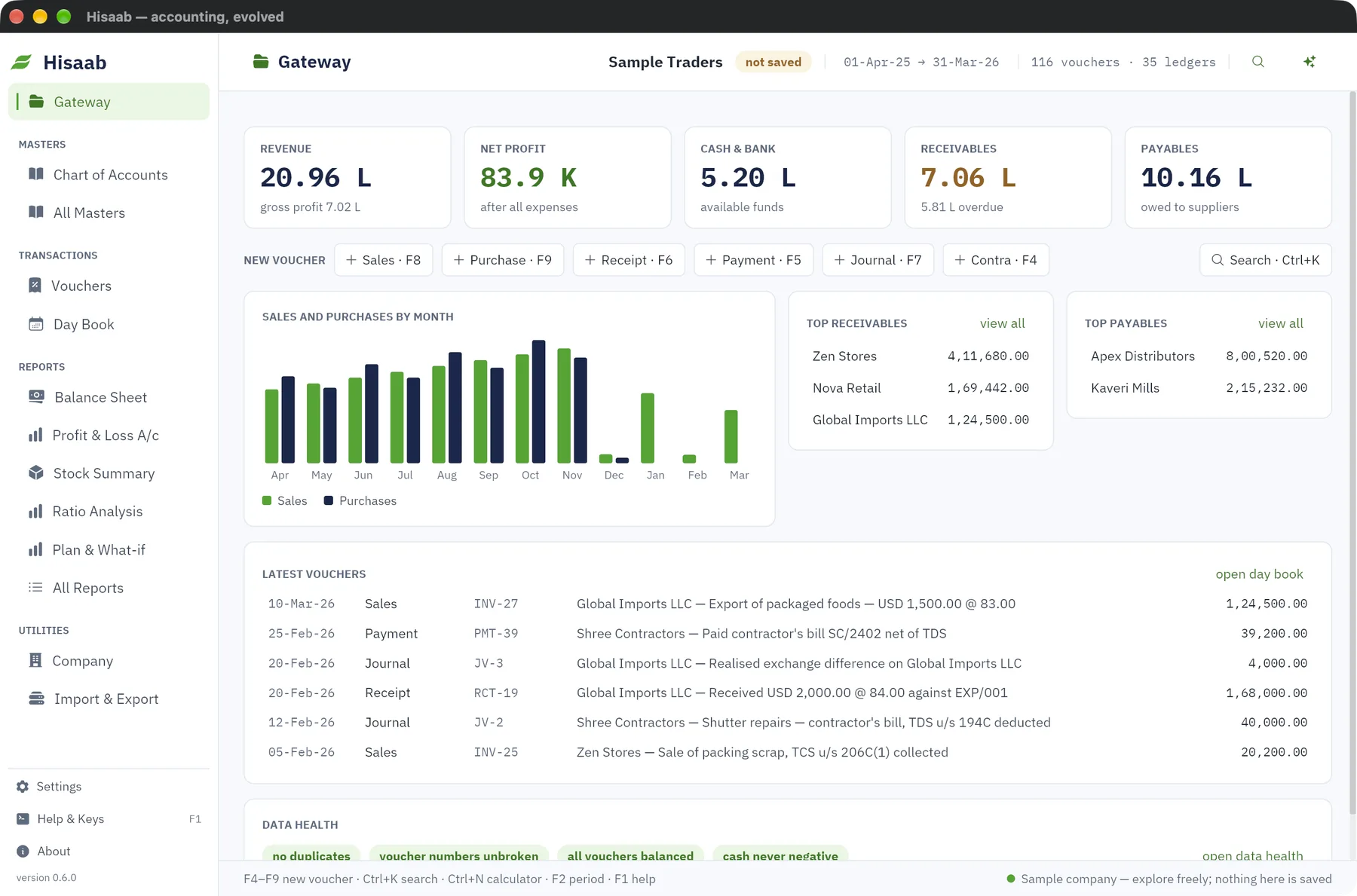
Sidebar#
The sidebar is the menu. It stays the same on every screen.
| Section | Entries |
|---|---|
| (top) | Gateway |
| Masters | Chart of Accounts, All Masters |
| Transactions | Vouchers, Day Book |
| Reports | Balance Sheet, Profit & Loss A/c, Stock Summary, Ratio Analysis, Plan & What-if, All Reports |
| Utilities | Company, Import & Export |
At the foot of the sidebar are Settings, Help & Keys (F1) and About, with the version number below them.
Top bar#
From left to right the top bar shows:
- A back arrow (same as Esc) and the name of the screen you are on.
- The company name. A not saved label means the books are only in memory. A read-only label means changes are blocked.
- The period, for example
01-Apr-25 → 31-Mar-26. Reports use this period. - Counts of vouchers and ledgers in the company.
- The signed-in user and role, if the company has users.
- Buttons for search and the AI Assistant.
Status bar#
The left side lists the keys that work on the current screen. The right side shows the result of your last action, such as "Company settings saved".
Gateway#
The Gateway is the home screen. Everything on it can be clicked.
- Figures: Revenue, Net profit (or Net loss), Cash & bank, Receivables and Payables for the period. Each opens its report.
- New voucher: buttons for Sales, Purchase, Receipt, Payment, Journal and Contra, with their keys F8, F9, F6, F5, F7, F4.
- Sales and purchases by month, Top receivables and Top payables.
- Latest vouchers: the last six. Click one to open it.
- Data health: duplicates, missing voucher numbers, unbalanced vouchers and negative cash.
- Getting started: a checklist shown for a new company until every step is done or you click hide.
Search with Ctrl+K#
- Press Ctrl+K (or Ctrl+G).
- Type part of a report name, ledger, party, voucher number, amount or action. Small typing mistakes are tolerated.
- Use ↑ and ↓ to choose, then press Enter.
Press Esc to close the search without going anywhere.
Change the period#
- Open a report or a list such as the Day Book.
- Press F2, or click the period button on the report's toolbar.
- Type From and To dates and click Apply, or click one of This month, Last month, This quarter, This year, Last year, All data.
Dates can be typed as 1-4-2025, 1/4/25, 1-Apr-25 or 20250401. The period applies to every report until you change it. Quarters and years follow the April to March financial year.
Note: The period panel opens on report and list screens. On the Gateway, open a report first.
Light and dark theme#
Press Ctrl+Shift+T. You can also open Settings and click Use dark theme or Use light theme beside Appearance. The choice is remembered on this computer.
Settings, Help & Keys, About#
- Settings lists every setting in one place, grouped as This computer and This company. Most rows have an Open button. Updates, Privacy and Website are set right there: see Update Hisaab and What Hisaab sends.
- Help & Keys shows how everyday work is done and the list of keys.
- About shows the version and the company's data folder, and has Check for updates, Get support and Report a problem.
Next#
Something here wrong or missing? Open a ticket and mention this page.