
Enter a voucher
Enter any voucher from type to save, in the mode that suits it, with item lines, worked-out GST and bill references.
Press a function key from any screen to start a voucher. One form handles every type, and each type can be entered in the mode that suits it.
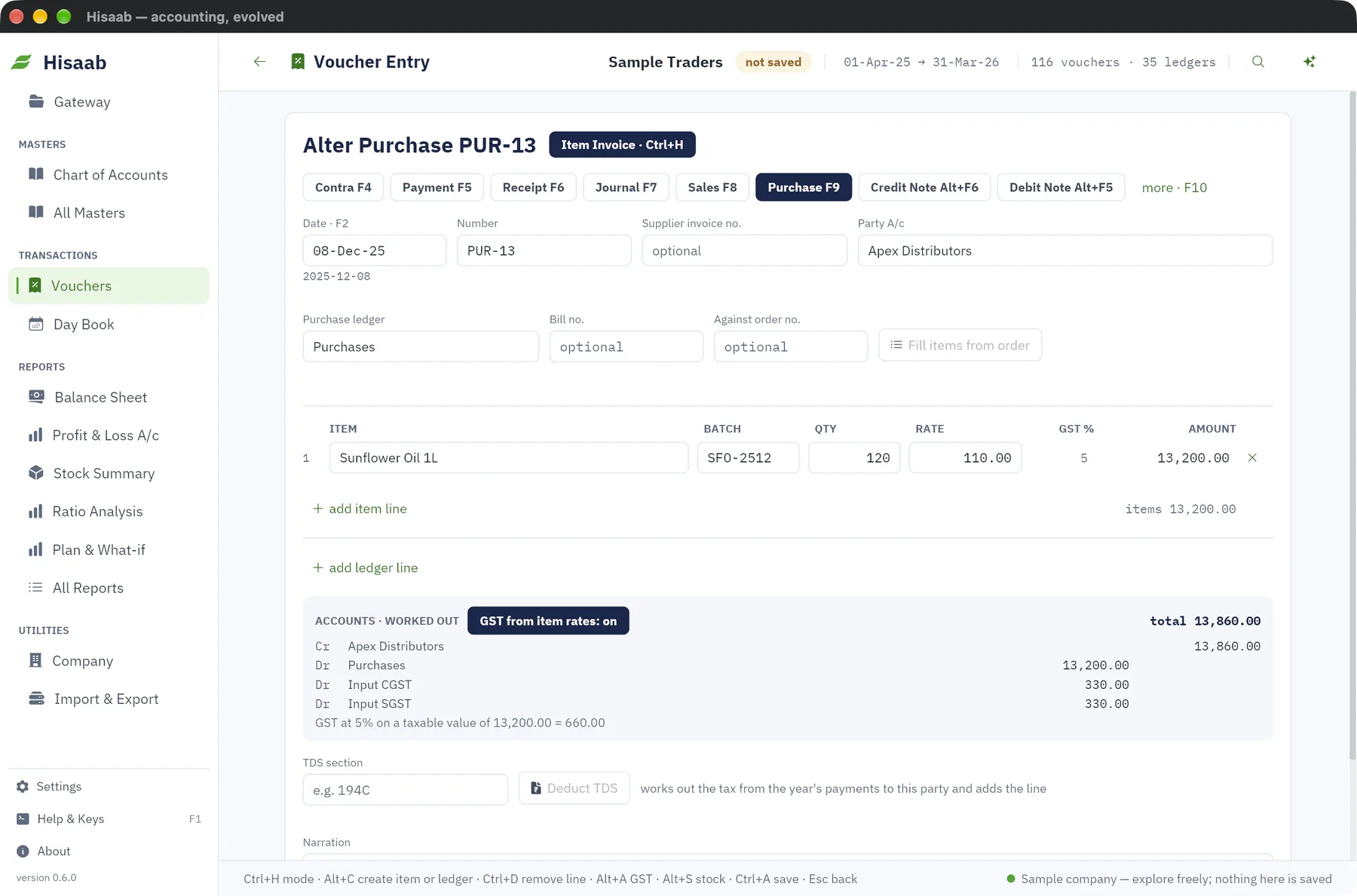
Enter and save#
- Press the key for the type: F4 Contra, F5 Payment, F6 Receipt, F7 Journal, F8 Sales, F9 Purchase, Alt+F6 Credit Note, Alt+F5 Debit Note. Press F10 for the list of all types.
- Type the Date, for example
15-4-2025or15-Apr-25. F2 takes you back to it at any time. - Leave Number blank to get the next number shown in the box.
- Enter the party or account and the lines for the mode you are in (see below).
- Type the Narration.
- Press Ctrl+A, or click Save · Ctrl+A. Ctrl+S saves too.
The status bar shows the saved number. The form stays open with the same type and date for the next voucher.
Every key works while the cursor is in a field. See the keyboard reference for the full list.
Modes#
The chip beside the heading shows the mode, for example Item Invoice · Ctrl+H. Press Ctrl+H or click the chip, choose with ↑ ↓ and press Enter.
| Voucher types | Modes |
|---|---|
| Sales, Purchase, Credit Note, Debit Note | Item Invoice, Accounting Invoice, As Voucher |
| Payment, Receipt, Contra | Single Entry, Double Entry |
| Journal, orders, notes, stock vouchers | As Voucher only |
A mode is a way of typing. What is saved is the same in every mode: debit and credit entries, and item lines where there are any.
Hisaab remembers the mode you choose for each voucher type on this computer. New vouchers of that type open in it.
Item Invoice#
- Type the Party A/c and pick it from the suggestions. For a cash sale, type the cash ledger.
- Check the Sales ledger (or Purchase ledger). It starts with the one you used last.
- Type each Item, Qty and Rate. Batch is optional. The line shows the item's GST % and the amount. For a free item, type the quantity and a rate of
0. A rate left blank is refused. - Under Additional ledgers, add freight, discount or round-off: a ledger and an amount. Type a minus, for example
-50, to take an amount off the bill.
You do not type debits and credits. The Accounts · worked out box shows the entries as you type: the party's total, the sales or purchase ledger, and GST. Hisaab uses IGST when the party's state differs from your company's state, and CGST + SGST otherwise. A missing tax ledger such as Output CGST is created under Duties & Taxes when you save.
GST is worked out on the item lines only. The Accounts · worked out box shows the taxable value and the tax at each rate. Freight, a discount or any other additional ledger does not change the taxable value, and the box says so when you add one. To tax freight, or to take a discount off the taxable value, switch GST from item rates off and add the tax ledgers with their amounts. To enter a voucher with no GST lines, switch it off and add none.
Accounting Invoice#
- Type the Party A/c.
- Under Particulars, type each ledger and its amount: the sales or purchase ledger, expenses, tax ledgers.
The party takes the total. There are no item lines, so stock does not move.
As Voucher and Double Entry#
Type each Ledger and its amount under Debit or Credit. Nothing is worked out for you. The chip beside the totals shows balanced, or how much debit or credit is short.
Single Entry#
- Type the Account: the cash or bank ledger. It starts with the one you used last for this type.
- Under Particulars, type each ledger and its amount.
The account takes the total. In a Payment the account pays. In a Receipt it receives. In a Contra the account at the top receives the money and the particulars say where it came from. A minus amount goes to the other side, for example a deduction from a payment.
Changing mode or type part-way#
Changing mode keeps what you typed wherever the new mode can hold it. If something would be dropped, Hisaab asks first and names it, for example "This removes: 1 item line". No leaves the voucher as it was.
The same rule applies when you change the voucher type. A Purchase with item lines does not become a Payment with item lines: Hisaab asks, then keeps the accounts and removes the items.
A saved voucher you are altering is not turned into its opposite by one key. If the new type would move its debits and credits to the other side, for example a Receipt made into a Payment, Hisaab asks first and says so. Nothing changes in the books until you save.
Opening a saved voucher#
A saved voucher opens in the mode that shows all of it: Item Invoice if it has item lines, Single Entry if one cash or bank line stands against the others, otherwise the debit and credit lines. Saving it without a change leaves it exactly as it was.
When you change a line, Hisaab keeps what the form does not show wherever it still fits:
- An item line whose quantity or rate you change stays in its godown. It keeps its expiry date while the batch is the same.
- A line set against one bill keeps that bill's due date.
- A line set against several bills keeps them while they still add up to its amount. If you change the amount, Hisaab asks before saving it against one bill only.
- If you change the amount of a line the bank has cleared, its bank date is removed and the status bar tells you to reconcile it again.
Moving with Enter#
Enter walks the fields in order: date, party or account, then each line, then narration.
- On the last field of the last line, Enter adds the next line.
- On an empty item or ledger, Enter ends that list and moves on. An empty ledger takes you to the narration.
- In debit and credit lines, the new line starts with the amount still needed to balance. When the voucher balances, Enter goes to the narration.
- On the narration, Enter asks "Save this voucher?". Press Enter again to save.
Tab and Shift+Tab move one field at a time. Ctrl+D removes the line the cursor is on. If the line has something typed on it, Hisaab asks first.
Suggestions and new masters#
As you type a party, ledger, item or cost centre, up to six matches appear under the field. Click one, or press Enter to take the first. Esc closes the list and keeps what you typed.
If the ledger or item does not exist yet, press Alt+C in that field. Hisaab opens the form with the name you typed, and after you save it you are back in the voucher with the name filled in. Ctrl+Enter opens the ledger or item named in the field for alteration, and returns the same way.
Sums, narration and other helps#
- Sums. Type
1200*18%or(450+50)*12in any amount, rate or quantity. Enter or Tab works it out. Ctrl+N, or Alt+C in an amount field, opens the calculator. A sum that does not work out, such as10/0, is refused. - Narration. Ctrl+R repeats the narration of the last voucher of this type. Alt+R brings back the one last used for this party.
- Earlier vouchers. Page Up opens the previous voucher of this type and Page Down the next.
- Stock. Alt+S shows the stock of the item on the line. Esc returns to the voucher.
- GST. Alt+A shows the taxable value and tax by rate for the voucher as typed.
- Party. Ctrl+I shows the party's address, GSTIN, balance and credit terms.
The box beside a ledger#
The box between a ledger and its amount is the bill number for a party, the cost centre for an income or expense ledger (if you have created cost centres), and the foreign amount for a foreign-currency ledger.
Bill references#
On a party line, type the bill number in the Bill / centre box. In the two invoice modes, the party's own bill number goes in Bill no. beside the party.
- On an invoice, this raises a new bill for that amount.
- On a receipt or payment, type the same bill number to settle that bill.
Each line takes one bill number for its full amount. To settle two bills in one receipt, use two party lines. With the box blank, the oldest bills are settled first.
The balance rule and other checks#
A voucher is saved only when total debit equals total credit. In the invoice and single-entry modes this is always so, because the party or account takes the total. If something is missing, the status bar names it, for example "enter the party first" or "enter the amount for 'Freight'". A save is also refused for these reasons:
- Credit limit. A voucher that takes a customer past the credit limit on their ledger is not saved. This is a block, not a warning.
- Period lock. The date is on or before the lock date of your books.
- Number in use. The number is already used for this type in the financial year.
Save as a draft#
Press Ctrl+L, or click Optional · Ctrl+L, before saving. The voucher gets a number but affects no ledger or stock until you alter it and switch this off.
Leaving without saving#
Esc goes back. If you typed something and did not save it, Hisaab asks "Leave without saving?" first. Ctrl+Q does the same.
You can look something up part-way: Help, a report or the search opens over the voucher, and Esc brings you back to it as you left it. If you leave a voucher unsaved under another screen and then start a new one or open another, Hisaab asks before giving up what you typed. Alt+2 asks the same before a copy replaces unsaved typing.
Limits#
- Post-dated vouchers are not available yet.
- An Item Invoice posts all its items to one sales or purchase ledger. To split them over several ledgers, use As Voucher.
- Dispatch details are not kept.
- Additional ledgers of an Item Invoice are not part of the taxable value. See the Item Invoice section above for what to do meanwhile.
Next#
Something here wrong or missing? Open a ticket and mention this page.