
Reconcile a bank account
Mark bank dates by hand or from a statement file, and review the draft vouchers made for entries missing from your books.
The Bank Reconciliation report starts from the balance as per books, lists entries the bank has not cleared yet, and arrives at the balance as per bank.
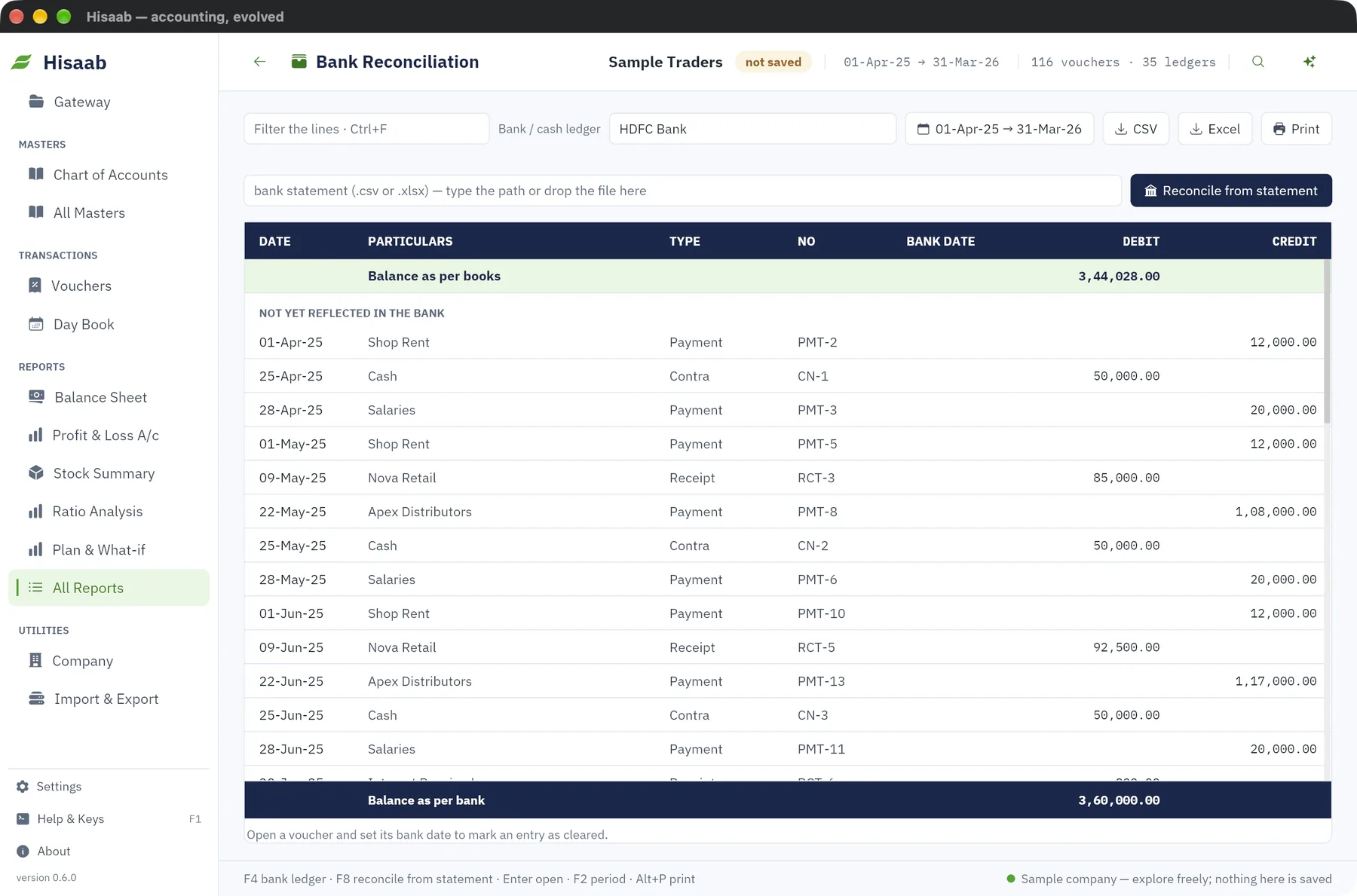
Open the report#
- Press Ctrl+K, type
bank reconciliationand press Enter. Or open All Reports, then Bank Reconciliation. - Type the bank's name in Bank / cash ledger and pick it from the suggestions.
Entries under "Not yet reflected in the bank" are the ones without a bank date.
Mark a bank date by hand#
- Press Enter on an entry to open its voucher.
- In the Bank reconciliation box at the bottom, type the date the bank cleared it.
- Click Mark cleared.
The bank date cannot be earlier than the voucher date. To undo, open the voucher and click Clear.
Reconcile from a statement file#
- Download the statement from your bank's net-banking site as CSV or Excel (.xlsx).
- Open the Bank Reconciliation report for that bank ledger.
- Drop the file on the window. Or type its path in the statement box and click Reconcile from statement.
The status bar reports how many lines were matched, already reconciled, and not in your books.
What the file needs#
The column headings can be below the bank's account details, within the first 40 rows.
| Column | Headings recognised |
|---|---|
| Date (required) | Date, Txn Date, Transaction Date, Tran Date, Posting Date, Value Date |
| Amount (required) | Separate Debit or Withdrawal and Credit or Deposit columns. Or one Amount column with a Dr/Cr column, a Dr or Cr after the figure, or a minus sign for money out. |
| Description | Description, Narration, Particulars, Remarks, Details |
| Reference | Ref No, Chq No, Cheque No, UTR, Reference, Instrument No |
Balance and total rows are skipped. If any row has a bad date or amount, nothing is imported and the problems are listed by row number.
How lines are matched#
The amount must agree to the paisa. Then, in this order:
- By reference. The statement's cheque or reference number equals the voucher's reference, its number, or a word in its narration. Leading zeros are ignored.
- By date, book entry first. A book entry dated up to 7 days before the statement date. The closest date wins.
- By date, book entry later. A book entry dated up to 3 days after the statement date.
Each book entry and each statement line is used once. The bank date is set to the statement date.
Review the drafts#
For each statement line with no matching entry, a draft voucher is made: a Payment for money out, a Receipt for money in. Each draft takes the next number of its type, for example PMT-41. The other ledger is guessed from the description:
- interest credited goes to your interest income ledger
- words such as charge or fee go to your bank charges ledger
- a customer or supplier named in the description goes to that party
- anything else goes to Suspense
To review them:
- Press F10. Drafts show the status "optional".
- Open a draft and click Alter.
- Correct the ledger.
- Click Optional · Ctrl+L to switch it off, then press Ctrl+S.
- Import the same statement again. The vouchers you just posted are matched and marked cleared.
Importing a statement twice does not duplicate drafts and uses no numbers.
Note: A draft made by an earlier version has no number. It takes the next number when you switch Optional · Ctrl+L off and save. If its voucher type is numbered by hand, type the number yourself.
Limits#
- PDF, picture and old-format .xls statements are not read. A picture dropped on this screen is refused; bill pictures are scanned from the Day Book.
- One bank ledger at a time.
Next#
Something here wrong or missing? Open a ticket and mention this page.