
Your first week in Hisaab
Install Hisaab, set up your company, bring in masters and opening balances, enter one voucher of each common type, check the Trial Balance and switch on backups.
This guide is for a new user who keeps the books of a small Indian business. At the end of the week your company will have its masters, opening balances and first vouchers, the Trial Balance will agree, and backups will be running. Allow 30 to 45 minutes a day.
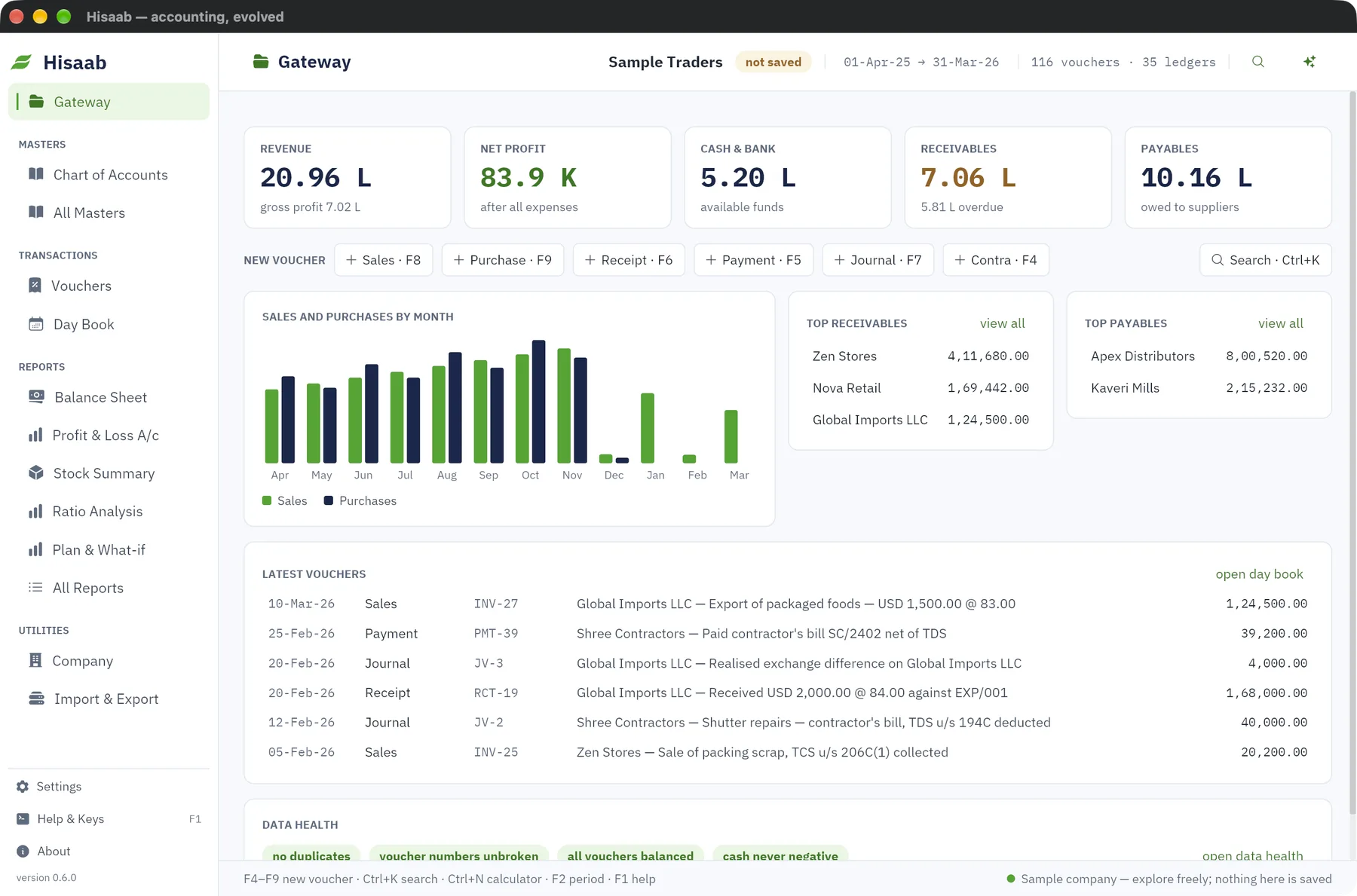
To look around first, click Look around first on the welcome screen. It opens Sample Traders, a sample company where nothing is saved.
Before you start#
- A computer with Windows, macOS or Linux. See Install Hisaab.
- Your GSTIN, if you are registered.
- Your last balance sheet, with party-wise dues and a stock list.
- If you are coming from other software, follow Move from your previous software in place of days 2 and 3.
The example is a trader in Pune who starts on 1-Apr-2025 with ₹3,60,000 in HDFC Bank and ₹40,000 in cash.
Day 1: Install and set up the company#
- Download and install the file for your computer. The installers are not yet signed, so Windows and macOS ask you to confirm the first launch.
- On the welcome screen click Set up my company.
- Type the Company name and GSTIN. Check State, Address and Books begin on. Click Continue.
- Choose Trading, Services or Manufacturing. Switch on Registered for GST, and I pay salaries (payroll) if you will run payroll.
- Type the Main bank account name, the Balance in bank and the Cash in hand.
- Click Create company.
Hisaab creates the common ledgers and the GST tax ledgers. Capital Account is credited with the bank and cash openings: ₹3,60,000 + ₹40,000 = ₹4,00,000.
Check: the Gateway opens with a Getting started card, and Cash & bank reads ₹4,00,000.
Day 2: Create or import your masters#
For a party:
- Click Chart of Accounts, then New ledger.
- Type the Name. In Under group pick Sundry Debtors for a customer or Sundry Creditors for a supplier.
- Fill GSTIN, State (place of supply), Credit period (days), Address and Phone / WhatsApp. Press Ctrl+S.
For an item:
- Click All Masters, then Stock Items, then New item.
- Fill Name, Unit, HSN / SAC and GST rate %. Press Ctrl+S.
With many masters, use a sheet. On Import & Export, beside Blank sheets to fill in, click ledgers or stock items. Fill the sheet and drop it on the window.
Example: Nova Retail (Sundry Debtors), Apex Distributors (Sundry Creditors) and Basmati Rice 5kg with unit bag, HSN 1006 and GST rate 5.
Check: the ledger list and the Stock Items list show what you added.
Day 3: Enter opening balances#
- In Chart of Accounts, select a ledger and click Alter. Type the Opening balance and click Dr or Cr. Save.
- In Stock Items, open the item and fill Opening quantity and Opening value, the total and not the rate.
- Create a ledger named
Opening Stockunder Stock-in-Hand, with a Dr opening equal to the total opening value of all items. The opening check counts ledgers only. Without this ledger, opening stock shows on the Balance Sheet as profit of earlier years. - Press Ctrl+K, type
trialand press Enter.
Example openings:
- Dr: HDFC Bank ₹3,60,000 + Cash ₹40,000 + Furniture & Fixtures ₹2,00,000 + Nova Retail ₹85,000 + Opening Stock ₹42,000 (100 bag × ₹420) = ₹7,27,000.
- Cr: Apex Distributors ₹1,27,000 + Capital Account ₹4,00,000 = ₹5,27,000.
The Trial Balance shows a row Difference in opening balances of ₹7,27,000 − ₹5,27,000 = ₹2,00,000. The capital on the old balance sheet was ₹6,00,000, not the ₹4,00,000 the set-up assumed. Alter Capital Account to ₹6,00,000 Cr and the row disappears.
Check: Debit and Credit totals on the Trial Balance are equal, here ₹7,27,000 each, with no difference row.
Day 4: Enter one voucher of each common type#
Start with a purchase, so there is stock to sell.
- Press F9. Type the Date and pick the supplier in Party A/c.
- Type the Item, Qty and Rate.
- Look at the Accounts · worked out box. Hisaab has worked out the party, purchase and tax lines. There is nothing to click.
- Press Ctrl+S.
A sale with F8 works the same way. For a Receipt, Payment or Contra, type the cash or bank ledger in Account, then each ledger and its amount under Particulars. For a Journal, type each Ledger with its amount under Debit or Credit.
| Key | Type | Example |
|---|---|---|
| F9 | Purchase | 50 bag at ₹420 = ₹21,000, GST 5% = ₹1,050, Cr Apex Distributors ₹22,050 |
| F8 | Sales | 20 bag at ₹520 = ₹10,400, CGST ₹260 + SGST ₹260, Dr Nova Retail ₹10,920 |
| F6 | Receipt | Dr HDFC Bank ₹10,920, Cr Nova Retail ₹10,920 |
| F5 | Payment | Dr Rent ₹12,000, Cr HDFC Bank ₹12,000 |
| F4 | Contra | Dr HDFC Bank ₹20,000, Cr Cash ₹20,000, cash deposited |
| F7 | Journal | Dr Office Expenses ₹600, Cr Printing & Stationery ₹600, a correction |
Both parties are in Maharashtra, so the 5% is split into CGST and SGST. The full journeys are From sale to cash and From purchase bill to payment.
Check: the Journal shows balanced before you save, and the status bar shows the number of each saved voucher.
Day 5: Check the Day Book and Trial Balance#
- Press F10. The Day Book lists the six vouchers.
- Open the Trial Balance again, then Stock Summary from the sidebar.
Work the figures by hand once:
- HDFC Bank: ₹3,60,000 + ₹10,920 − ₹12,000 + ₹20,000 = ₹3,78,920.
- Cash: ₹40,000 − ₹20,000 = ₹20,000.
- Apex Distributors: ₹1,27,000 + ₹22,050 = ₹1,49,050 Cr.
- Basmati Rice 5kg: 100 + 50 − 20 = 130 bags.
Check: the Trial Balance totals agree, the ledgers show the figures above, and Stock Summary shows a Closing Qty of 130.
Day 6: Turn on backups#
Hisaab backs up a saved company once a day, when you open it. Those backups sit on the same disk as the books.
- Click Settings, then Open on the Backups row, then Back up now.
- Every week, close Hisaab and copy the company folder to another disk. Press F3 to see its path.
- If you have a cloud server, connect it and click Turn on cloud backup. Keep the cloud code away from this computer. See Back up to the cloud.
- If others will use the books, see Share books with your accountant.
Check: the new backup is at the top of the Backups list, and a copy of the folder is on another disk.
Day 7 onwards: the regular jobs#
- Every month: Close the month
- Every GST period: One GST month, books to portal
- Every salary month: A payroll month, start to finish
- On 31 March: Close the year, start the next
If something is off#
- You stay on step 1 of the set-up. The GSTIN is wrong or does not match the state. The status bar says which.
- A difference row on the Trial Balance. An opening is missing or on the wrong side. See Enter opening balances.
- No tax lines in the Accounts · worked out box. The item has no GST rate %. Alter the item, then alter the voucher. If it shows GST from item rates: off, click it to switch it on.
- A voucher will not save. The status bar says what is missing. On a Journal, the chip shows how much debit or credit is short. See Enter a voucher.
Where to go next#
Something here wrong or missing? Open a ticket and mention this page.