
See stock reports
Read the Stock Summary, trace one item's movement, and check reorder, godown, batch and pending-order reports.
Stock reports are built from the item lines on your vouchers and the opening stock on each item. All of them are under All Reports in the Inventory card. Stock Summary is also in the sidebar.
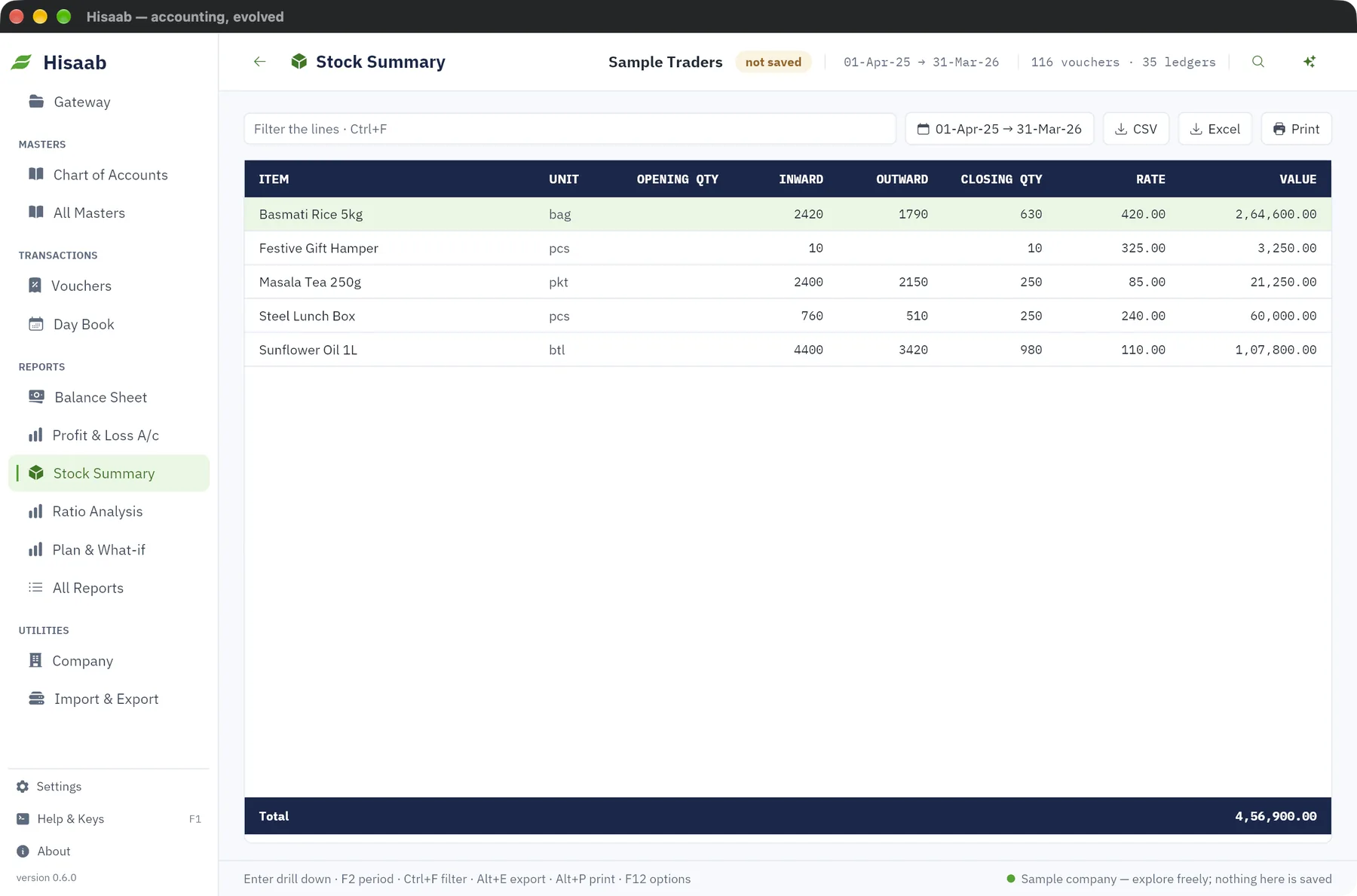
Stock Summary#
- Click Stock Summary in the sidebar.
- Press F2 to change the period.
For each item the report shows Opening Qty, Inward, Outward, Closing Qty, Rate and Value, with a total value at the bottom. Movements before the period are folded into the opening.
Press Enter on an item to see its movement.
How stock is valued#
Hisaab uses weighted-average cost. There is no other method.
- A purchase adds its quantity and its value. The rate becomes total value ÷ total quantity.
- A Receipt Note adds its quantity at the value on the note. The linked Purchase then replaces that value with the cost on the bill, on the date of the bill.
- A sale takes stock out at the average rate on that day.
- A sales return (Credit Note) comes back at the current average rate.
- A Physical Stock voucher sets the quantity to the counted figure and keeps the average rate.
For example, 100 kg bought at ₹50 and then 100 kg at ₹60 gives 200 kg at ₹55. Selling 50 kg leaves 150 kg valued at ₹8,250.
Negative stock#
If an item is sold before it is received, the item is highlighted and a note under the report gives the count. Check for a missing purchase or a wrong date.
Item Movement#
Open All Reports, then Item Movement, and choose the item in Stock item. Each voucher that moved the item is listed with date, type, number, party, inward or outward quantity, rate and running balance. An invoice whose goods a linked note already moved is not listed. Press Enter on a line to open the voucher.
Click Alter item to change the item's master from here.
Reorder Status#
Open All Reports, then Reorder Status. It lists items whose stock is at or below the Reorder level on the item, with the shortfall. Items with no reorder level are not listed.
Godown Summary#
Open All Reports, then Godown Summary. Stock is listed godown by godown with quantity, rate and value. The rate is the item's average rate for the whole company. Stock with no godown is under "Main Location".
Note: The voucher form has no godown column. Everything you enter in the app sits in Main Location. Other godowns appear only for vouchers imported from a spreadsheet with a Godown column.
Batch Expiry#
Open All Reports, then Batch Expiry. For every item bought or sold with a Batch on the item line, the report shows quantity on hand per batch. Where an expiry date exists, it shows the days left and marks batches as "Expired" or "Expiring soon" (within 30 days).
Expiry dates cannot be typed in the app. They come only with data imported from your previous software.
Sales Orders and Purchase Orders#
Open All Reports, then Sales Orders or Purchase Orders. Each order with something still pending is listed with ordered, delivered or received, and pending quantities, and the pending value. An order is reduced by invoices and delivery or receipt notes that quote its number in Against order no.
Which vouchers move stock#
| Adds stock | Reduces stock |
|---|---|
| Purchase, Receipt Note, Credit Note | Sales, Delivery Note, Debit Note |
A Stock Journal adds with a positive quantity and reduces with a negative one. Draft and cancelled vouchers do not move stock.
A Delivery Note and the Sales invoice raised against it move the goods once. So do a Receipt Note and its Purchase. The invoice must quote the note's number, or the same order number as the note, in Against order no. Quantities a linked note has already moved are left out of the invoice's movement in every stock report: Stock Summary, Item Movement, Reorder Status, Godown Summary and Batch Expiry. An invoice with no link moves stock in full. See Voucher types.
Limits#
- Weighted-average cost only. No FIFO, LIFO or standard cost.
- No stock groups or categories, so there is no group-wise stock summary.
- No stock ageing report.
Next#
Something here wrong or missing? Open a ticket and mention this page.