
From purchase bill to payment
Take one supplier bill from the ledger to a purchase voucher, input GST, stock received and payment against the bill, and confirm it in the payables and stock reports.
This guide is for whoever books supplier bills and pays them. At the end, one bill will be in the books with its input GST, the stock will be up, and the supplier will be paid against that bill. The entries take about fifteen minutes.
Before you start#
- A purchase ledger and input tax ledgers exist. The set-up creates them for a GST-registered trader. See Set up GST.
- The stock item exists with HSN / SAC and GST rate %. See Create stock items.
- You are signed in as Accountant or Admin.
The example#
Sample Traders, Pune, receives bill APX/1187 dated 8-Dec-2025 from Apex Distributors, also in Maharashtra, on 45 days' credit.
| Line | Working | Amount |
|---|---|---|
| Basmati Rice 5kg | 200 bag × ₹420 | ₹84,000 |
| Input CGST | 2.5% of ₹84,000 | ₹2,100 |
| Input SGST | 2.5% of ₹84,000 | ₹2,100 |
| Bill total | ₹84,000 + ₹2,100 + ₹2,100 | ₹88,200 |
Stage 1: Complete the supplier's ledger#
- Click Chart of Accounts. Select the supplier and click Alter, or click New ledger and put it under Sundry Creditors.
- Type the GSTIN. Input tax from a supplier without a valid GSTIN is left out of the input credit total in the GSTR-2 report.
- Fill State (place of supply) if there is no GSTIN. It decides between IGST and CGST with SGST.
- Type
45in Credit period (days) and leave Track bill-by-bill on. - Fill Bank account no. and IFSC if you pay by bank transfer.
- Press Ctrl+S.
Check: the GSTIN mark shows valid with the supplier's state.
Stage 2: Enter the purchase voucher#
Typed#
- Press F9. Type the Date of the bill,
8-12-2025. - Type the supplier's bill number,
APX/1187, in Supplier invoice no. - Pick
Apex Distributorsin Party A/c. - Type
APX/1187in Bill no. beside the party. The bill is then known by the supplier's number. - Type the Item, Qty
200and Rate420. - Look at the Accounts · worked out box. A Purchase opens in Item Invoice mode, so Hisaab works out Dr Purchases ₹84,000, Dr Input CGST ₹2,100, Dr Input SGST ₹2,100 and Cr Apex Distributors ₹88,200. There is nothing to click.
- Add a round-off or freight line under Additional ledgers if the bill has one, then press Ctrl+S.
From a photo of the bill#
This needs the AI assistant set up with a model that reads images. See Scan a supplier bill.
- Press F10 and drop the picture on the window, or type its path and click Scan bill.
- A draft Purchase voucher opens. Compare every figure with the paper bill.
- Click Alter. The draft has ledger lines only, so it does not move stock. To add the item lines, press Ctrl+H, choose Item Invoice and type them.
- Click Optional · Ctrl+L to switch it off and press Ctrl+S.
Careful: In Item Invoice mode the purchase amount and GST are worked out from the item lines. Hisaab asks before it removes a line you typed. On a scanned draft, remove any tax line left under Additional ledgers so that the tax is not counted twice, keep the round-off line, and check the total in the Accounts · worked out box against the bill.
Check: the credit to the supplier in the Accounts · worked out box equals the bill total of ₹88,200, and the voucher is not marked "optional" in the Day Book.
Stage 3: Confirm input GST and stock#
- Open All Reports, then GSTR-2, for December. Apex Distributors is under registered suppliers with input tax of ₹4,200.
- Click Stock Summary in the sidebar.
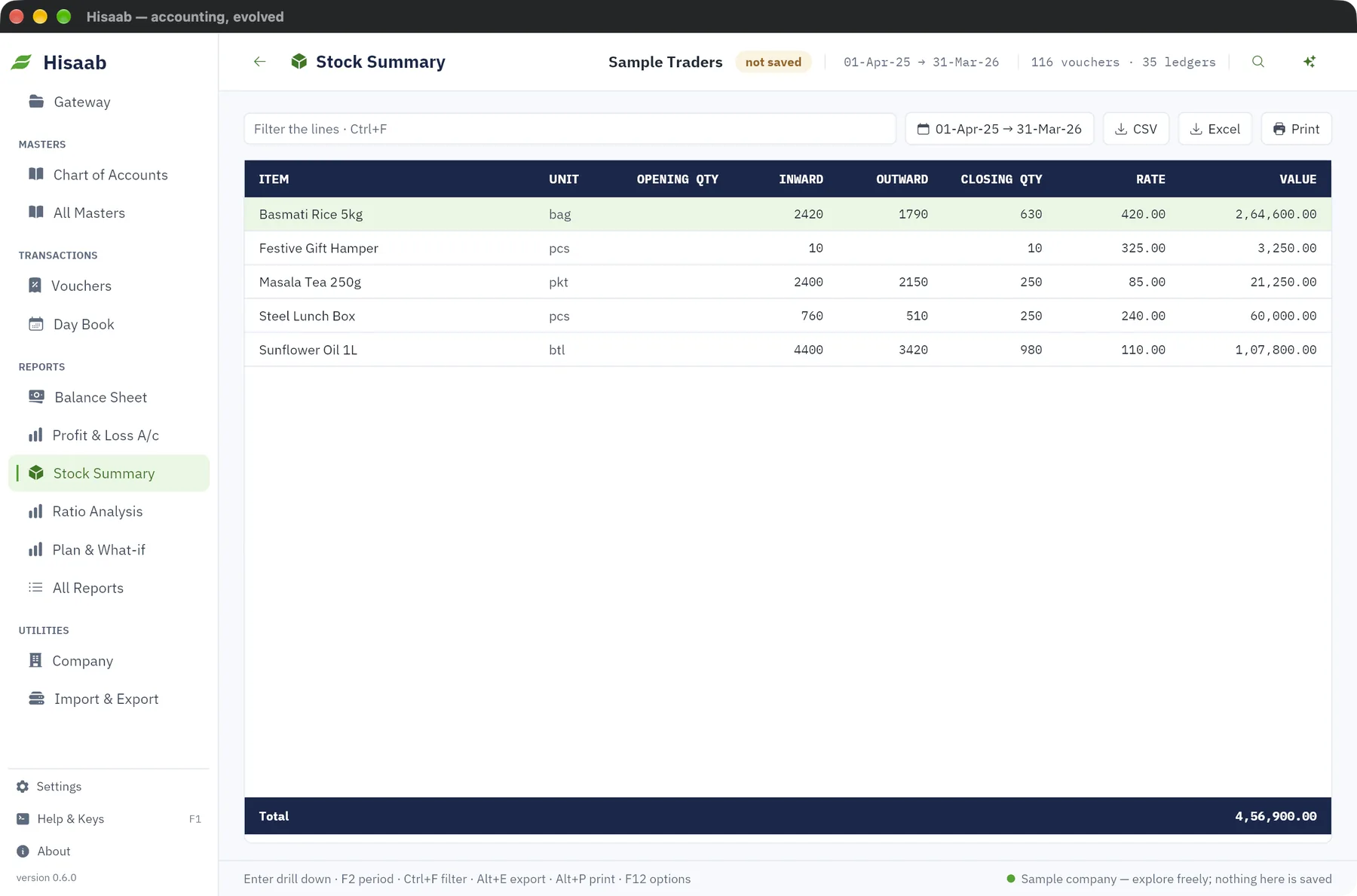
Check: for Basmati Rice 5kg, Inward is up by 200 and Value by ₹84,000. GST is not part of stock value. The Rate is the weighted average, so it moves only if this purchase rate differs from the average so far.
Stage 4: Deduct TDS, only where it applies#
TDS is for payments such as contract work, rent or professional fees, not this goods bill. Ask your tax practitioner which sections apply to you.
The TDS section box appears on Purchase and Journal vouchers once a section exists under All Masters, TDS Natures of Payment.
- Enter the supplier's bill as a Purchase or Journal voucher.
- Type the section, for example
194C, in TDS section and click Deduct TDS. - Check the two changed lines and save.
Example: Shree Contractors bills ₹1,20,000 under 194C at 2%. TDS is ₹1,20,000 × 2% = ₹2,400. The credit to Shree Contractors becomes ₹1,17,600 and TDS Payable is credited ₹2,400.
- Hisaab works the tax on the supplier's credit line, which is the bill total including any GST. If the tax should be on the value before GST, correct the two lines by hand.
- Nothing is deducted until the year's total for the party crosses the section's threshold. The voucher that crosses it is taxed on the whole year's total.
- The button does not work on a Payment voucher. Deduct on the bill, then pay the net amount.
Check: the TDS Report under All Reports lists the voucher with its gross amount and TDS.
Stage 5: Pay against the bill#
The bill is due on 22-Jan-2026, 45 days after 8-Dec-2025. Sample Traders pays on 20-Jan-2026.
- Press F5 and type the Date. A Payment opens in Single Entry mode.
- Type the cheque or transaction number in Reference.
- Type
HDFC Bankin Account. This is the account the money is paid from. - Under Particulars type
Apex Distributors, thenAPX/1187in Bill / centre, and88200in Amount. - Press Ctrl+S.
To print a cheque, open the saved voucher and click Cheque. For a bank upload, press Shift+F5 for the Payment Register and click Bank payment file. It saves a CSV of the period's bank payments to suppliers that have a bank account number and IFSC. Hisaab does not send it, and your bank may want its own layout.
Check: the Accounts · worked out box shows Dr Apex Distributors ₹88,200 and Cr HDFC Bank ₹88,200, and after saving the status bar gives a number such as PMT-58.
Stage 6: Read payables and stock#
| Report | What proves it |
|---|---|
| Bills Payable | APX/1187 is no longer listed under Apex Distributors |
| Payables Ageing | The supplier's total is lower by ₹88,200 |
| Bank Reconciliation | The payment sits under "Not yet reflected in the bank" until you mark its bank date |
| Reorder Status | Basmati Rice 5kg has left the list if stock is now above its reorder level |
Check: the supplier's ledger balance equals the total of their pending bills in Bills Payable.
If something is off#
- The scan is refused. The figures do not add up, a tax or Round Off ledger is missing, or the bill number is already entered for that supplier. Nothing is added to the books. See Scan a supplier bill.
- IGST in place of CGST and SGST, or the reverse. The supplier's state is wrong or blank. Correct the ledger, then alter the voucher. The saved tax lines are kept under Additional ledgers, with GST from item rates: off. Remove those lines, click GST from item rates: off to switch it on, and check the Accounts · worked out box before you save.
- Input tax is missing from GSTR-2 or GSTR-3B. The GST reports read Purchase and Debit Note vouchers only. A bill with GST booked as a Journal or Payment is not counted. Enter it as a Purchase.
- Stock did not rise. The voucher has no item lines, or it is still a draft. Alter it.
- The bill is still pending after payment. The bill number on the payment does not match the one on the purchase. Alter the payment. See Follow up receivables and payables.
Where to go next#
Something here wrong or missing? Open a ticket and mention this page.